Harmonizer User Guide
Harmonizer is a workbench for roughing out vocal arrangements: enter a melody, put chords under it, generate a draft harmony in the style you want, listen to it on a real piano or choir sound, and edit until it works. It also makes rehearsal tracks for your singers and moves music in and out as MusicXML and MIDI. This guide covers everything it does.
Launch Harmonizer → · Quickstart · About the project
1. Getting started
Open Harmonizer from the project page (or the Launch Harmonizer link above). It opens in its own browser tab. There is nothing to install and no account: everything runs in your browser, and your work is saved in that browser automatically.
There are two ways in. Start from a melody (or a blank page), put chords under it and let Generate parts write the other voices; or open a MIDI or MusicXML file you already have (or one of the Examples) and edit it. A minimal first session of the first kind looks like this:
- Choose a Key, Time signature and Tempo in the header.
- Open Note entry, pick a duration (say, quarter note) and click on the staff to drop notes. Or open the Text panel on the right, type a melody into Melody text and press Apply text → melody.
- Press Space (or Play) to hear it.
- Open Chords and press Suggest chords for a starting harmony. Set Staves to 4, open Staves, choose a style and press Generate parts.
- Edit any note you don't like. Then keep it: it autosaves, and Save → as .musicxml, Save → as .mid or Save → Rehearsal tracks… take it wherever it needs to go.
Sounds. Playback loads a sample file that sits next to the app: the piano (harmonizer-piano-samples.json, about 7 MB), and from 3.0 the Choir Aahs, Organ, Strings and Flute sounds (about 1 MB each). Each loads only the first time something plays it, so the first Play on a new sound can take a moment; after that it is instant.
2. The screen at a glance
From top to bottom and left to right:
- Navbar across the top, on a deep-purple band — Harmonizer, then the commands: New, Open…, Examples ▾, Save ▾, Print / PDF, ⚙ Settings and ? Help.
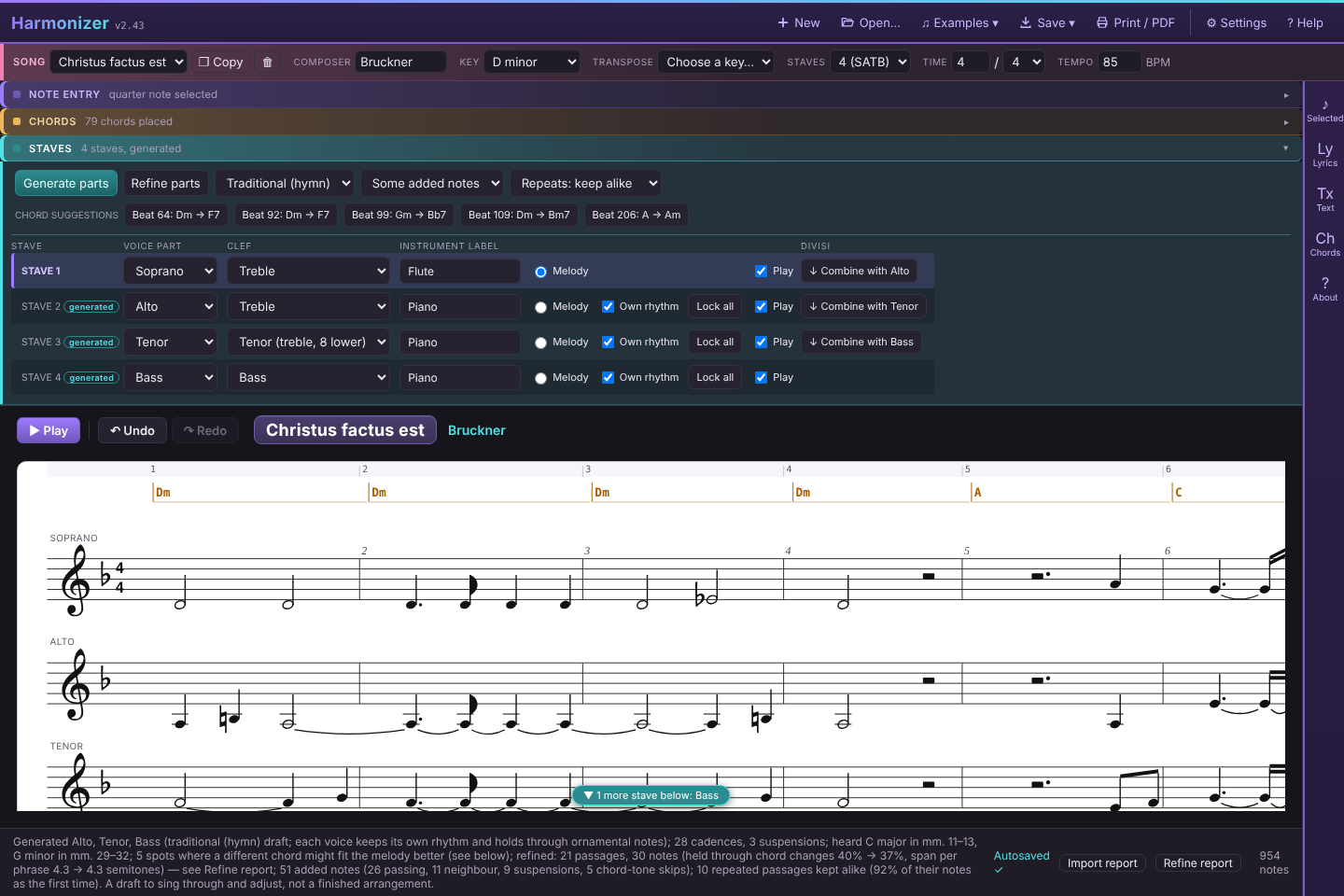
- Song line just beneath it, styled like the tool strips below it (with a rose edge) but always open — the Song menu with Copy and Delete, then composer, key, transpose, number of staves, time signature and tempo. On a narrow window it wraps onto a second line.
- Three collapsible tool sections, closed by default so the staves get the room: Note entry (durations and note buttons, and the Marks row for expressive marks and repeats), Chords (the chord palette, Suggest chords, Chords from voices, Clear chords, Play chords) and Staves (Generate parts, Refine parts, the style menu and the Added notes menu, then one line of controls per stave, including Combine and Split divisi). Click a strip to open or close it (hovering over one says which); the strip itself shows a short summary (the current duration, how many chords, how many staves).
- The score bar, just above the score — ► Play, Undo and Redo, then the song's title (click it to edit) and composer (the play window shows them too), so you always know which song you're in.
- The score — a row of measure numbers (the measure ruler: click a number to select that measure on every stave; see Melody sections), the chord lane, then one stave per vocal part.
- Icon rail (far right, in the same purple as the navbar) — Selected (the note and chord inspectors, and the list of key, tempo, time, rehearsal and repeat marks), Lyrics, Text (melody text), Chords (chord text) and About. Click an icon to slide its panel out over the score; click it again, or the ×, to put it away.
- Status bar (bottom) — the most recent message, an “Autosaved” indicator (or an amber warning if saving failed; see Saving), and a note count.
3. The header controls
The navbar holds the file and app commands; the line under it holds the song's settings; Play, Undo, Redo and the song's title sit on the bar just above the score. The table covers all three.
| Control | What it does |
|---|---|
| Song | Switches between the songs stored in this browser. Copy duplicates the current song; the trash button deletes it (after a confirmation). See Saving, songs, backup and export. |
| Title (above the score), Composer | Metadata, written into MusicXML and MIDI exports and used to name exported files. |
| Key | The opening key signature (major and minor keys, up to seven sharps or flats). A note with no explicit accidental takes the key signature's default. Changing this menu relabels the key without moving notes; to move the music, use Transpose to. For a key change part-way through, see Key, tempo and time changes. |
| Transpose | Moves the whole song to another key of the same mode. See Transposing. |
| Staves | How many staves to show, 1–8. 4 = SATB, 3 = SAB; 5–8 add Baritone and second Soprano, Alto and Tenor parts. |
| Time | The opening time signature. Numerator 1–32, denominator 2, 4, 8 or 16. Barlines follow from it. |
| Tempo | The opening tempo, in beats per minute (20–300). |
| ► Play | On the bar above the score. Opens the play window and starts playing; Space does the same. Pause, Stop, Loop and the rest are in the play window (see Playback). |
| Undo / Redo | On the bar above the score. Step back and forward through your edits. See Undo and redo. |
| ⚙ (Settings) | Black on white, Barlines, Measure numbers, Show locked notes, Mark generated notes, Range warnings, Mark partwriting problems, Refine after Generate parts, and the song library backup. See Settings. |
| ? Help | Opens the built-in quick-start, which links to the Quickstart and this guide. |
| New | Starts a fresh song without losing the current one. |
| Examples ▾ | Opens one of the example arrangements that come with Harmonizer, as a new song. See Examples. |
| Open… | Opens a saved .json song or library backup, or imports a MusicXML (.musicxml, .xml, .mxl) or MIDI (.mid) file as a new song. |
| Save ▾ | A menu: as .json (a file Harmonizer reopens exactly), as .musicxml (for MuseScore, Finale, Sibelius and similar), as .mid (a Standard MIDI File for rehearsal apps, DAWs and notation software) or as .wav (what you'd hear on Play, as audio), and last, Rehearsal tracks… (see the next row). Arrow keys move through the menu; Esc closes it. |
| Save ▾ → Rehearsal tracks… | Makes one part-learning track per voice, bundled in a .zip. See Rehearsal tracks. |
| Print / PDF | Prints the score, or saves it as a PDF from the browser's print dialog. |
4. Entering a melody
Clicking notes onto the staff
Open Note entry, choose a duration — whole, half, quarter, eighth or sixteenth — then click on the staff. A note of that duration appears at the pitch you clicked, after the selected note (or at the end if nothing is selected). Clicking the staff adds notes to the melody stave and to any stave with Own rhythm ticked (see Staves).
Two modifiers apply to the next note(s) you add:
- • Dot — lengthens the note by half again (a dotted quarter is 1½ beats).
- 3 Triplet — makes simple 3:2 triplets: three notes in the time of two. The button counts down the notes left in the group.
A new note takes the key signature in force where it lands, so after a key change to D major a note clicked onto the F line is an F♯.
The note-entry buttons
| Button | What it does |
|---|---|
| + Note before / + Note after | Inserts a new note next to the selected one, starting from its pitch. With nothing selected, adds at the start or end of the melody. |
| Insert rest | Inserts a rest of the current duration in the same way. |
| Delete | Removes the selected note (the Delete key does the same). |
| Clear notes | Wipes the whole melody — and the chords, which are positioned relative to it. Asks first. |
These work on the stave of the selected note: the melody, or any stave with its own rhythm.
Below them, the Marks row adds tempo words, rit./accel., fermatas, breaths, dynamics, hairpins, articulations, slurs, rehearsal letters and text — see Expressive marks.
5. Selecting and editing notes
Selecting
- Click (or tap) a note to select it. It turns violet and its details appear in the Selected panel.
- Shift-click extends the selection to a contiguous range on the same stave, from the last note you clicked.
- Ctrl-click (Cmd-click on a Mac) adds or removes a single note, on any stave, without disturbing the rest of the selection.
- ← / → move the selection along the stave.
- To select whole measures on every stave at once, click the measure numbers above the chord lane (Shift-click or drag for more). See Melody sections.
Changing pitch
- Drag a notehead straight up or down with the mouse, a pen, or a finger on a tablet. The note snaps to staff positions; dragging on a note never scrolls the score. A whole drag undoes as one step.
- ↑ / ↓ nudge the selection one staff step. With Shift held, the step is seven (roughly an octave).
- Ctrl+↑ / ↓ (Cmd on a Mac) move the selection a full octave.
- Nudging and octave moves apply to every selected note at once, and follow the key in force at each note.
The note inspector
With a single melody (or own-rhythm) note selected, the Selected panel offers precise control:
- Letter and octave, typed or chosen directly.
- ♭ ♮ ♯ buttons to set the accidental, and 8va ↑ / ↓ to shift an octave.
- Duration buttons (W H Q E S), • Dot, and ⁀ Tie, which joins the note to the next one.
- For a triplet note, an Un-triplet whole group button.
- Divisi: add a second note on the same stem (+ 3rd below / + 3rd above), then set its letter, octave and accidental, ⇅ Swap it with the main note, or remove it. See Divisi on one stave.
- A Lyric box with a v1–v6 verse menu (type straight through the song from here; see Lyrics), a Text above box for words like “hum” or “solo”, and a line listing the note's marks with Clear marks.
- Delete note.
Selecting a note on a generated stave gives a smaller inspector with the pitch controls, plus a 🔓 Lock this note / 🔒 Locked — click to unlock toggle (see Generating the other parts). Selecting several notes gives the bulk operations: octave up/down, Divisi (+ 3rd below, + 3rd above, Remove, on every selected note), Lock selected / Unlock selected, and — when exactly two notes on different staves are selected — Swap pitches (Ctrl+X).
Accidentals
A sharp, flat or natural is drawn next to a note whenever it differs from what the key signature in force at that note implies — on every such note, even if an earlier note in the same measure already had it. So in D major an F♯ shows nothing, while an F natural shows a ♮ sign.
6. Undo and redo
Undo / Redo on the bar above the score, or Ctrl+Z / Ctrl+Y (Ctrl+Shift+Z also works; Cmd on a Mac). Undo covers note and chord edits, Generate parts, Suggest chords, Transpose, key/tempo/time changes, and text edits such as the title or a lyric — each typing session undoes as one step, not one per keystroke. Up to 100 steps are kept. Switching to another song, or starting a New one, starts that song's undo history fresh.
7. Typing melodies as text
The Melody text box in the Text panel is a compact shorthand that is often faster than clicking. Type or paste, then press Apply text → melody. Regenerate text from melody writes the current melody back out as text, handy for copying or for bulk edits.
Each note is:
letter + optional accidental + octave + duration + optional dot + optional ~ + optional /lyric
| Part | Values |
|---|---|
| Letter | A–G |
| Accidental | # sharp, b flat, n natural. Omit it to use the default of the key signature in force at that point in the song. |
| Octave | 0–8, with middle C = C4. Omit to repeat the previous note's octave. |
| Duration | w whole, h half, q quarter, e eighth, s sixteenth. Omit to repeat the previous duration. |
| Dot | . after the duration. |
| Tie | ~ after a note ties it to the next: A4q~ A4e. |
| Lyric | / followed by the syllable. |
| Rest | Rq, Rh. and so on. |
| Triplet | Three notes in parentheses followed by 3: (C4e D4e E4e)3. |
Example: C4q/Twin C4q/kle G4q/lit G4q/tle A4h./how G4e F4e/der F4h/
Applying text replaces the whole melody, so any generated harmony is cleared (there is no reliable note-by-note correspondence between the old and new melody). Run Generate parts again afterwards.
8. Lyrics
Every stave can carry lyrics — up to six verses, one line under the stave for each, numbered 1., 2.… when there's more than one. Syllables are centred under their notes, a hyphen is drawn between the syllables of a word, and a line (an extender) runs under a syllable that's held over several notes.
Typing note by note
Click a note and press Enter (or click in the Lyric box in the Selected panel). Then just type the words:
- Space or Tab moves on to the next note (rests are skipped); Shift+Space or Shift+Tab goes back.
- - ends a syllable in the middle of a word and moves on:
Twin-kleputs Twin and kle on two notes, with a hyphen between. - _ holds the syllable over the next note (a melisma) and moves on; press it again to hold over another. Tied notes hold their syllable without it.
- Enter finishes. The whole run of typing is one step for Undo.
The small v1–v6 menu beside the Lyric box chooses the verse you're typing; that verse's line is shown darker on the score.
Filling a whole verse at once
In the Lyrics panel, choose the Verse, type or paste the words in the box — Twin-kle twin-kle lit-tle star, how I won-der what you are__ — and press Fill from start (or Fill from selected note to carry on from where you are). Hyphens split words into syllables; an underscore holds a syllable over one more note, either on its own (_) or at the end of a word (are__ holds are over two more). Load verse puts the stave's existing words for that verse in the box so you can edit them as text; Clear verse removes them. The buttons work on the selected note's stave, or the melody.
Words for every voice
Copy lyrics to the other staves copies every verse from the selected stave (or the melody) to every other stave that has its own notes, beat for beat: a note that starts with a syllable gets it, and a note that starts in the middle of one gets a hold. It replaces what those staves had, so use it once the parts are written (Undo puts it back).
Lyrics also go in and out: /lyric in the melody text (verse 1), MusicXML import and export (every verse, with hyphenation and extenders), and MIDI (verse 1, as lyric events).
9. Chords
Placing chords
The chord lane runs across the top of the score. Open Chords, set the chord you want — a root (C, C♯/D♭, and so on) and a quality — then click in the lane at the beat where it should start. Clicks snap to the nearest beat. A chord holds until the next chord, so clicking partway through an existing chord's span shortens it and begins a new one at that point. Click close to an existing chord's marker to select it instead.
Qualities available: major, minor, diminished, augmented, dominant 7th, major 7th, minor 7th, diminished 7th, sus2 and sus4. There is at most one chord per beat.
Editing chords
A selected chord appears under Selected chord in the Selected panel, where you can change its root or quality or press Delete chord.
Suggest chords
Suggest chords makes a diatonic guess — one chord per measure — from the melody notes in each measure and the key in force there (so it follows key changes). Treat it as a first draft. If chords already exist you're asked before they are replaced. Clear chords removes all of them.
Chords from voices
Chords from voices analyses the notes the staves actually sing — the melody plus every stave that has its own rhythm or generated notes — and names the chord for each window, then merges repeats. The menu beside the button sets the window: every beat (a dotted quarter in 6/8, 9/8 and 12/8), half measure, or every measure. Longer notes count more than passing notes, the lowest voice is favoured as the root, and chords that fit the key in force get a slight preference; it can name major, minor, seventh, diminished, augmented and sus chords. If a window has no notes the previous chord simply carries on. If chords already exist you are asked before they are replaced. It works best once the other staves are written; on a single melody it is little better than Suggest chords.
Typing chords
The Chords panel takes one symbol per measure: C G7 Am Fmaj7. Symbols are a root (A–G with optional # or b) plus an optional quality — m, dim, aug, 7, maj7, m7, dim7, sus2, sus4; blank means major. Press Apply text → one chord per measure; this replaces all chords.
Hearing them
Chords are played under the voices. Untick Play chords in the Chords section to hear the vocal lines alone; the choice is remembered in this browser.
10. Staves, parts, clefs and instruments
The Staves control shows one to eight staves. Four defaults to SATB — Soprano and Alto on treble clef, Tenor on the treble clef marked “8”, and Bass on bass clef. Three defaults to SAB; five to eight add Baritone, Soprano II, Alto II and Tenor II.
Open the Staves section to see Generate parts on top and, below it, one line per stave, with the controls lined up in columns. The melody stave's line is highlighted, and a stave written by Generate parts carries a small generated tag:
- Part — Descant, Soprano, Soprano II, Alto, Alto II, Tenor, Tenor II, Baritone, Bass, Bass II. Changes the stave's label and its range and role in harmony generation.
- Clef — Treble, Bass, or Tenor. Tenor is a treble clef with a small 8 beneath it: the music sounds an octave lower than written, the standard way to notate a tenor line. Playback and every export honour this.
- Instrument — the sound the stave plays (from 3.0): Piano (the default), Choir Aahs, Organ, Strings or Flute. Other names play the nearest of these: Voice, Soprano, Choir Oohs and the like as Choir Aahs; Violin, Viola, Cello and Double Bass as Strings; Oboe, Clarinet, Recorder and saxophones as Flute; brass as Organ. Anything it doesn't recognise plays piano. Hover over the field to see which sound the stave will use. An imported file's instrument names are kept, so a MIDI file of “Choir Aahs” parts plays as a choir. The exception is voice parts that the file played on another sound (MIDI files often put the singers on flute or brass). Those come in as Piano, and the status line says so. The name is written into MusicXML and MIDI exports, where it also picks the General MIDI sound. To put every stave on one sound for a while without changing the fields, use Sound in the play window (see Playback).
- Melody (radio button) — chooses which stave holds the tune. Move it off the top line and the notes are shifted by octave to suit that voice; treat that as a rough starting point. Generated harmony is cleared, as it was written for the old arrangement.
- Own rhythm (checkbox, non-melody staves) — the stave has a rhythm of its own, edited exactly like the melody: click its staff to add notes, and insert, delete, tie, dot or re-time them. Generate parts writes its harmony this way too, so the box switches on by itself for every stave it fills. Once you've written a note into a stave you ticked by hand, that stave is your own composed line and Generate parts leaves it alone. Unticking the box discards the stave's notes (it asks first).
- Play (checkbox) — whether that stave is heard. Untick it to mute a part without losing it.
- Lock all / Unlock all (generated staves) — lock or free every note on the stave at once (see Locking).
- ↓ Combine with … (Divisi column) — puts the stave below onto this one. Where the two sing the same note it's written once; where they differ it's two notes on one stem (divisi); where one holds while the other moves, the held note is split into tied notes so both fit on the stem. The stave below goes away. It refuses (and names the measures) only where triplets in one line don't line up with the other. If one of the two was the melody, the combined stave is.
- Split divisi — the reverse: the second notes move to a new stave just below (Alto II under Alto, say), with the unison notes on both — useful for separate rehearsal tracks. Split then Combine gives you back exactly what you had.
Divisi on one stave
A note can carry a second note on the same stem. Select a note and use Divisi in the Selected panel: + 3rd below or + 3rd above adds one, then set its letter, octave and accidental there; ⇅ Swap exchanges it with the main note (the one dragging and the arrow keys move), and ✕ removes it. With several notes selected, the same buttons add or remove a divisi on all of them. Divisi notes are drawn with their own accidentals, dots, ledger lines and ties (seconds sit either side of the stem), play on their stave's sound and in its rehearsal track, move with Transpose and the octave keys, count in Chords from voices, and are checked by Mark partwriting problems as a line of their own. MusicXML writes them as chords on one stem; MIDI plays both notes.
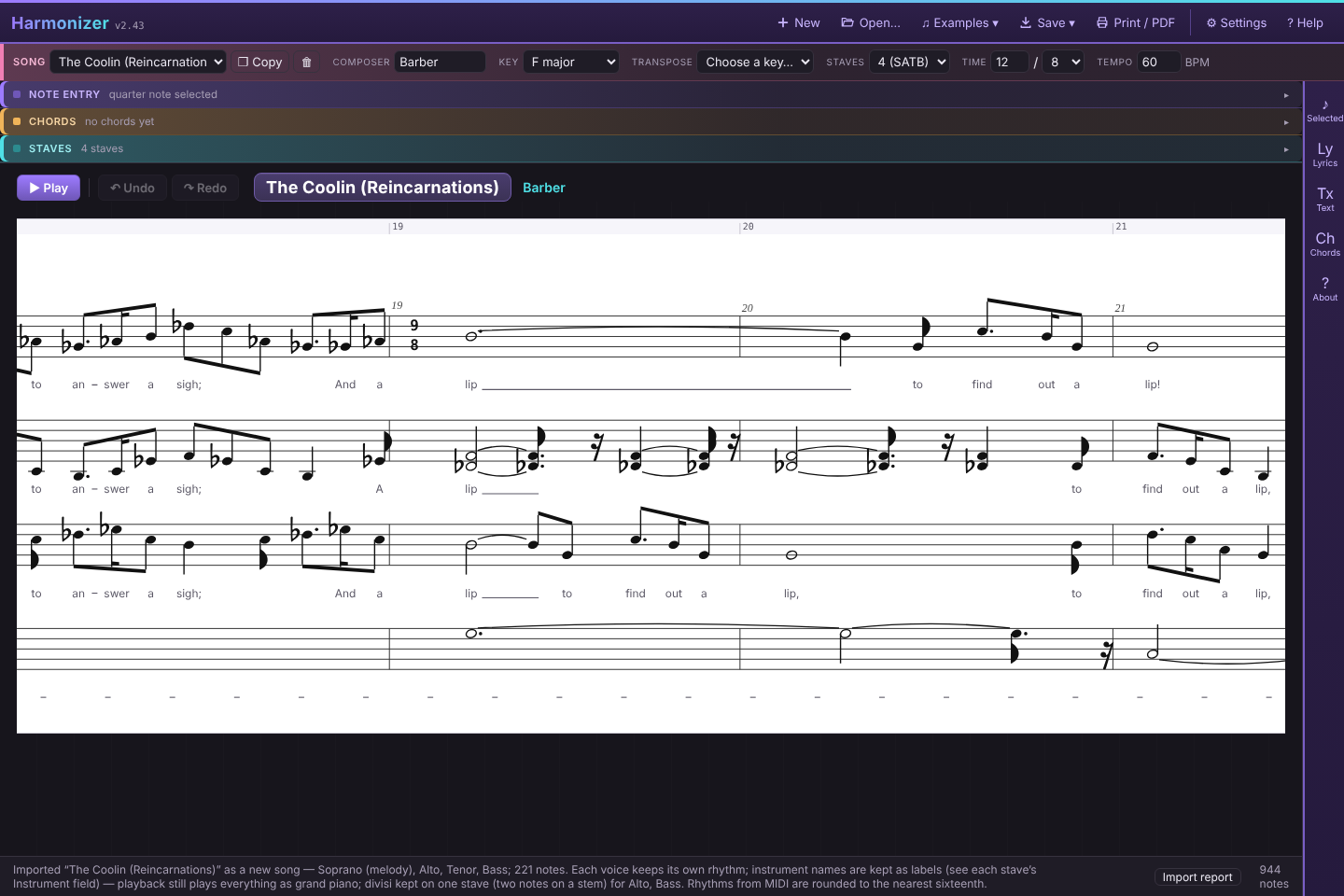
Notes on every stave line up on a shared time grid, and barlines run through all staves. Reducing the stave count removes the extra parts; if that would remove the melody stave, the melody moves to a remaining one.
11. Generating the other parts
With more than one stave and at least one chord placed, a Generate parts button appears at the start of the Staves section, with a style menu beside it. It fills every eligible non-melody stave with a draft worked out from the melody and the chords beneath it: a bass line planned first, sensible voice ranges, doubling rules, and a search across the whole passage (not just chord by chord) for smooth voice leading. Parallel octaves are always avoided; how the rest is weighed depends on the style — parallel, contrary and hidden fifths and octaves, voices overlapping, cross-relations (F in one voice, F♯ in another straight after) and augmented seconds are all costed, most heavily in Traditional. Generated notes are spelled from their chord: in D minor the leading tone is C♯, not D♭. The tune can be on any stave: voices placed above it stay above it, and the bass stays below it with room for the voices in between. The full rule set, with every weight, is in the Partwriting Guide (PDF).
Styles
| Style | Character |
|---|---|
| Close harmony | The default. Contemporary a cappella in the vein of Gjeilo, Lauridsen and Whitacre: close spacing, doubled thirds welcome, parallel fifths and planing between upper voices tolerated. |
| Traditional (hymn) | Textbook four-part writing: no parallel fifths or octaves (nor by contrary motion), hidden fifths and octaves in the outer voices discouraged, no voice overlaps, cross-relations or augmented seconds where they can be avoided, complete triads with the root doubled rather than the third, soprano–alto and alto–tenor within an octave, smooth inner voices, leading tones and sevenths resolved properly, and more contrary motion against the melody. |
| Open (wide) | Open-position voicing: the upper voices spread a fifth to a tenth apart, the tenor and bass sit lower to make room, fewer unisons, and fifths and octaves treated fairly strictly. |
The style is saved with the song. Pick one and press Generate parts; to compare, make a Copy of the song and generate each copy in a different style. Locked notes are kept whichever style you use.
This is a starting draft, not a substitute for a real voice-leading pass by ear. Expect the occasional awkward leap or unresolved leading tone. Turning on Mark partwriting problems in Settings shows you any parallels, hidden or contrary fifths and octaves, overlaps, cross-relations and augmented seconds in the result (Close harmony tolerates parallel fifths on purpose), and Range warnings point out notes a voice would strain for — handy after you've dragged notes around by hand.
Which staves it fills. A stave is eligible if it's blank — including one you've ticked Own rhythm on but haven't written into yet — or if its current content is itself a previous Generate parts result. A hand-built Own rhythm stave is skipped entirely. To hand one back, untick Own rhythm (this discards its notes, and asks first).
How it reads the music
Generate parts doesn't write note by note from left to right. It reads the whole piece first, then chooses each voice's line for the whole passage at once.
- Phrases and cadences. A phrase ends at a rest, at a note held well beyond the tune's usual length, or where a tonic chord arrives on a downbeat from its dominant or subdominant and is held (a phrase is at least about a measure long). At each cadence the bass wants the root, the chords are filled out completely, leading tones and sevenths are made to resolve, and a Picardy third in the melody is honoured. The chord before the cadence prefers root position too.
- Secondary dominants. A dominant seventh, or a major chord that doesn't belong to the key, falling a fifth to the next chord is heard as that chord's V: a D7 going to G in C major is V7 of G, so its F♯ is treated as a leading tone that rises to G, and its C as a seventh that falls.
- The local key. Measure by measure, Harmonizer compares the notes and chords around it with every major and minor key (the Krumhansl–Schmuckler method), strongly preferring the key signature in force. A different key has to last three measures or more before it counts, so a stray accidental never “modulates”, but a real passage in the dominant or the relative minor is treated as being in that key — its V chord gets a proper leading tone — even with no key change written. This only guides the part-writing; it never changes the key signatures on the score.
- Three notes at a time. Each voice is judged over three notes in a row, not just two: after a leap of a fourth or more it prefers to step back the other way, and two leaps the same way that together pass an octave (or outline a tritone) are avoided. In Traditional and Open styles, the upper voices also avoid moving in lockstep (all by the same interval) twice running; in Close harmony that planing is left alone, since it's part of the style.
- Suspensions. Where a chord change lasts into the next melody note, a voice may hold its note over from the chord before (it prints as a tie), let it clash for a moment, then resolve it down by step into the chord — a 4–3 (the fourth above the root falling to the third) or a 9–8. They're only written when properly prepared and resolved, never against their own resolution in another voice, and mostly at cadences: Close harmony uses them most, Traditional mainly for the cadential 4–3. When the melody itself has a suspension, the other voices keep off its resolution note.
After a run, the status line reports what it heard: how many cadences, suspensions and secondary dominants, and any key areas outside the key signature (“heard G major in mm. 9–16”).
Refining the draft as lines
The search above judges each voice only a few notes at a time, which tends to write chords more than lines: an inner voice parks on a common tone for bars on end, or rocks back and forth between two notes. So after the draft is written, Generate parts goes over the whole thing again, one small change at a time, and keeps a change only if the result is better overall — by every rule above and by rules that need a whole phrase of one voice to judge:
- a voice sitting on one note through many chord changes;
- a line cramped into a second or third for a whole phrase (or spread too wide);
- more than one high point in a phrase;
- a string of back-and-forth steps (x–y–x–y);
- a voice shadowing the melody in parallel thirds or sixths for more than a couple of notes;
- one inner voice getting all the motion while another sits.
The changes it tries: re-plan one voice across a whole phrase with everything else held; move a single note (which can split a long held note), a whole held note, or the rest of a phrase to another chord tone or octave; and exchange notes between two voices for one to four notes — the classic voice exchange, including a brief crossing of two inner voices. The bass was planned first on its own terms, so the refine pass changes it only reluctantly. Locked notes never move, and a suspension stays put together with the notes that prepare and resolve it. The same song always refines the same way.
When it's done, a Refine report button appears in the status bar. It shows each voice's line measures before and after (how often it holds through a chord change, its average span per phrase, how much it shadows the melody), then lists every passage that changed, by voice and measure, with the main reasons (“Alto, mm. 5–6: 3 notes — breaks up a long held note; exchanged with the Tenor”). Click a line to scroll the score there.
Refine parts, next to Generate parts, runs the same pass on the parts as they stand now — after your hand edits, say — and then chooses the added notes again. Your edited (locked) notes stay exactly as they are, rhythm included; anything else may be improved around them. Words and marks you put on a part stay with any note that still starts at the same beat, and a stave whose rhythm you changed by hand is listened to but not rewritten. One Undo takes a refine back. To hear the plain draft without the refine pass, turn off Refine after Generate parts in Settings.
Independent rhythm
Generated voices keep their own rhythm rather than striking a fresh note on every melody note: an inner voice holds — tied — through repeated or purely ornamental melody notes, and only moves when the underlying harmony genuinely changes.
Chords under a held note. When the chord changes while the melody holds a note — a whole note over C, then F, then G — the other voices move with each chord, so the harmony you wrote is the harmony you hear. (Before 2.33 only the chord at the start of each melody note counted.) Only a real change of chord counts; a chord repeated on the next beat doesn't split anything.
Added notes
Where the melody holds, the voices may also add a note of their own, which is what makes each part a line to sing rather than a string of chord notes. The Added notes menu beside the style menu (saved with the song) sets how many: No added notes, Some (the default) or More. There are four kinds:
- Passing note — a voice moving a third fills in the step between (C–D–E).
- Neighbour note — a voice holding a note steps away and back (E–F–E); used mostly to break up a long held note.
- Suspension — a voice that would step down into a new chord holds its note over instead, clashing for a moment, then falls into place (4–3, 9–8, 7–6). Several in a row make a chain. Traditional style writes these only at cadences.
- Chord-tone skip — a leap of a fourth or more is broken by a note of the chord on the way, landing by step where it can.
An added note takes the second half of the note it splits (a suspension takes the first half) and is never shorter than an eighth; in 6/8 a dotted half splits into two dotted quarters. Some adds them under melody notes a half note or longer (a quarter or longer in Traditional style); More about twice as many, under quarter notes too. They're spread between the voices so each gets a turn, and they obey the same rules as everything else, more strictly: no parallel fifths or octaves in any style, none of the faults Settings can mark (fifths or octaves by contrary motion, hidden fifths and octaves, overlaps, cross-relations, augmented seconds), no crossing or doubling another voice at that moment, no suspension against its own resolution. Each is spelled from its line: a passing note rising from E to G is F♯, not G♭. Because they fall where the melody holds, they're sung as short melismas on the melody's syllable when you copy the words to the other staves. The status line and the Refine report count them.
Repeated music
When music comes back — a second verse, a refrain, a motif stated twice, a phrase repeated a step higher over chords moved the same way — Generate parts gives it the parts it had the first time, rather than voicing it afresh for no musical reason. The Repeated music menu beside the style menu (saved with the song) sets how:
- Repeats: keep alike (the default) — the repeat takes the first statement's parts, added notes included. Only where the music around it differs (the notes leading into and out of the repeat, a changed melody note) does anything change, and only as much as the rules need.
- Repeats: vary lightly — the repeat starts from the first statement's parts but may change where that helps the line, and gets added notes of its own.
- Repeats: write fresh — every passage is voiced on its own, as before 2.34.
What counts as a repeat. About a bar or more (at least three beats) of the same melody over the same chords, in the same place in the bar. A sequence counts too: the melody and the chords all moved by the same interval (the parts are moved by that interval, and by an octave where a voice would leave its range). Small differences are forgiven: a changed note, or a quarter split into two eighths for the words of a later verse, as long as the chords agree and no more than a beat differs at a time. A different pickup or ending simply isn't part of the match. A diatonic sequence counts as well (from 2.43): the chords and the tune moved by the same number of steps in the key, so the chord qualities change on the way (C F G, then Dm G Am). Its parts are moved by scale steps, so a third stays a third whether it's major or minor; the Refine report lists it as “a sequence, up a step in the key”. A sequence that changes key part-way isn't found; link it yourself if you want it. Written repeat signs don't need any of this: music between them is written once and played twice.
The report. The Refine report has a Repeated music section listing each repeat found (“mm. 9–16 like mm. 1–8”, “mm. 3–4 like mm. 1–2 (up a whole step)”) and how many of the repeats' notes are as the first time. Untick one to let it go its own way; to link two passages it didn't find, type the measures of the repeat and the measure where the first statement starts, and press Link. Press Apply to regenerate with the change. Both are saved with the song.
Editing the first time through. Refine parts follows repeats too, so change a note the first time through (it locks), press Refine parts, and the repeat takes the change. A note you've locked in a repeat stays as you wrote it there.
Melody sections
The tune doesn't have to stay on one stave. The tenors can take it for a verse while the sopranos sing a descant or a harmony above, and a passage can have no tune at all — an introduction, a pad under a solo, a hummed background — with every voice singing the chords.
Selecting measures. Above the chord lane is a row of measure numbers. Click a number to select that measure on every stave (it's shaded across the score); Shift-click another, or drag along the numbers, to take in more. The Selected panel then shows Selected measures. Esc clears the selection, as does clicking a note.
Melody in. Choose the stave that has the tune in these measures, or None (chords only), and press Apply:
- A stave: that stave's notes there are the tune from now on: Generate parts never rewrites them, and writes every other stave around them. Voices placed above the tune stay above it (so over a tenor tune the sopranos get a descant or a harmony), and the bass stays below. Give the tune to the bass (the lowest stave) and it is the bass line: every other stave is written above it as an upper voice, with the chord's doubling and spacing worked out from the note the basses sing. When the tune moves to a stave that has no notes of its own there, Bring the tune with it is ticked: the tune is copied across, moved by octaves to suit the voice (a soprano tune goes down an octave for the tenors), with its words and marks. The stave that had the tune gives it up there: its notes become generated ones, for Generate parts to rewrite.
- None (chords only): every stave is generated there, singing the chords to the rhythm you pick: One note per chord (each voice sings again at every chord change), Held (sustained) (a voice that keeps the same note across a chord change holds it, for pads and hummed backgrounds) or On the beat (every voice sings on each beat). The top stave still gets a line of its own, moving by step and common tone where it can and joining the music before and after. Generate parts tries a few such lines (starting on different notes), writes the voices under each, and keeps the one where the line and the voices together come out best.
Where the tune changes stave, the ruler says so (“Tune: Tenor”, “Chords only”), with a coloured bar under the measures. The Melody sections list at the bottom of the panel gives each passage; click one to select it, or click × to put the tune back in the melody stave there (it's copied back too). Melody sections are saved with the song. The melody stave chosen in the Staves section is still the song's main tune: the one it has wherever no section says otherwise.
Generate parts over melody sections. Generate parts works through the song passage by passage: first everywhere the tune is in the melody stave, then each other tune stave, then the chords-only passages. Each passage is written as its own draft, with the measure either side, where the music is already settled, heard as it is. Then it goes back over every join between sections and writes the last measure before it and the first measure after it again, now with the music on both sides in place, so neither side is left to do all the joining. It keeps each of these only if the join comes out smoother (smaller leaps, no new parallels or crossed voices); the status line says how many it kept. The status line lists the sections it worked through. Repeated music is found within the passages that have the tune in the same stave (a tenor verse doesn't copy the parts of a soprano verse, since the voicing has to be different). Refine parts works the same way.
Generated notes are marked one by one. Before 2.35 a whole stave was either written by Generate parts or written by you. Now each note carries the mark, so one stave can hold the tune (your notes) in one passage and generated harmony in the rest. Generate parts rewrites only generated notes: a stave with notes of yours in a passage is heard there but left as it is. Songs from earlier versions are converted as they open.
Rewriting some measures
With measures selected, the Staves row in the panel lists every stave with a tick box. By default the staves Generate parts would write are ticked; the tune there is greyed out, and a stave with notes you wrote there is marked “written by hand” and left unticked. Then:
- Rewrite writes the ticked staves again in the selected measures only. The tune, every unticked stave and every locked note stay exactly as they are, and the new music is joined to the measure before and the measure after. To keep the soprano and bass and rewrite the inner parts, select the whole song (All measures), untick Soprano and Bass, and press Rewrite. A stave you wrote by hand can be ticked too, and is then rewritten like any other.
- Lock / Unlock lock or unlock every note of the ticked staves in the selected measures, so Generate parts and Rewrite keep them (or may change them again).
Rewrite uses the song's style, Added notes and Repeated music settings, and the refine pass if it's on; its results show in the Refine report like Generate parts'. Undo puts the measures back as they were.
Locking
Hand-edit any note on a generated stave — drag it, nudge it, change it in the inspector — and it locks automatically, and the next Generate parts keeps that note exactly as written while it rebuilds everything else around it. Unlock a note from its own inspector (click the lock), lock or unlock several selected notes at once with Lock selected / Unlock selected, use Lock all / Unlock all for a whole stave, or select measures and use Lock / Unlock in the Selected measures panel for every ticked stave in those measures.
Seeing what's locked. On the score, a small blue padlock with a dashed line runs over every stretch of locked notes on a stave (rests don't break the stretch). Hover it for the stave and the number of notes; click it to select those notes, which opens the Selected panel with Unlock selected ready. Select a single note and its inspector says 🔒 Locked or 🔓 Lock this note. Select measures and the Staves list in the Selected measures panel says, for each stave, all locked or 5 of 12 locked there. The Staves section shows Unlock all (n) on any stave that has locked notes. The lock marks never print; turn them off in Settings (Show locked notes) if you don't want them.
Seeing what was generated. Generated notes look like any other notes, so on a stave that mixes your notes with generated ones — the tenor with the tune for a verse and generated harmony elsewhere, a stave you wrote part of by hand and Rewrote the rest — a dotted cyan line with a small star runs over each stretch of notes Generate parts wrote (rests don't break it; a locked note does, since it has the padlock instead). Those are the notes the next Generate parts or Rewrite may write again; the unmarked ones are yours. Hover it for the stave and the count; click it to select those notes. Settings › Mark generated notes can put it on every stave (a stave that's all generated then gets one long line) or turn it off. It never prints.
Chord suggestions
When a melody note doesn't sit well in any reasonable voicing of the chord you've given it, Generate parts proposes a replacement chord at that beat instead of forcing an awkward harmony. Suggestions appear as small buttons next to Generate parts (for example, Beat 4: C → F♯7); click one to apply that chord and regenerate, or ignore it if the melody note was intentional.
- Generated notes are drawn slightly dimmed to show where they came from, but they are fully editable: click, drag, nudge, change accidental, swap between staves, or shift an octave — any of which locks the note.
- Running Generate parts again replaces the harmony, except for locked notes. A locked note keeps its whole beat with it: an added note you've edited stays, rhythm and all.
- Locks, and the marks that say a note was written by Generate parts, are kept when the page reloads (before 2.33 they were lost, so after a reload Generate parts treated its own staves as hand-written). A song saved by an earlier version may already have lost the tag: if Generate parts says a stave is hand-written when it isn't, untick Own rhythm on it (this clears the stave, after asking) and Generate parts will write it afresh.
- Changing the melody, the chords, or a stave's Part or Clef clears stale harmony (locks included) so you know to regenerate.
- Harmony follows key changes: leading tones and dominant chords are judged against the key in force at each note, and generated notes are spelled in that key.
12. Key, tempo and time changes
The header sets the song's opening key, tempo and time signature. To change any of them part-way through:
- Select a note (or a chord) anywhere in the measure where the change should happen.
- Open the Selected panel and find Key, tempo, time & rehearsal marks. It names the measure and shows the key and tempo in force there.
- Pick a new Key, type a new Tempo, and/or set a new Time signature — any combination — and press Apply at m. n.
Changes always start at the beginning of the measure. A change in the very first measure is refused with a pointer to the header, which owns the opening values. Choosing the key or tempo that is already in force removes the change instead of adding a redundant one. Below the controls, every change in the song is listed in order (“m. 9: Key → D major”), each with a ✕ to remove it; Remove all here clears every change at the selected measure.
- On the score. The new key signature is drawn on every stave; when the new key has no sharps or flats, naturals cancel the old signature. A tempo change appears as “♩ = 72” above the top stave; a time-signature change on the melody stave.
- Existing notes keep their pitches. Adding a key change doesn't rewrite what you've written: an F that was natural stays natural, and now shows a ♮ sign. New notes, arrow-key nudges, drags, and letters typed in Melody text without an accidental follow the key in force where they land. If you want the music itself to move to the new key, write it that way (or transpose the whole song).
- Everything follows them. Playback and the playhead, loop, saved .wav audio and rehearsal tracks speed up and slow down at tempo changes; Suggest chords, Chords from voices and Generate parts use the local key; MusicXML and MIDI exports write the changes; imports keep them; Transpose moves key changes along with everything else.
13. Expressive marks
The Marks row, under the duration buttons in Note entry, adds the markings a choral score needs — and Harmonizer plays them, so you hear the ritardando, the held fermata and the hairpin while you arrange. Every button works on the selected note(s): click a note (or Shift-click a run of them), then click the mark. Press the same button again to take it off; Clear marks removes everything from the selection. The buttons light up to show what the selected note already has.
| Mark | How to add it | What playback does |
|---|---|---|
| Tempo word (Largo, Adagio, Andante, Moderato, Allegretto, Allegro, Vivace, Presto) | Tempo ▾ with a note selected. On the first note it sets the opening word and tempo (the header's Tempo changes to match); later on, it's a tempo change with the word. | Sets the word's usual metronome mark (Allegro ♩ = 132, and so on). Fine-tune the number in the header or in Key, tempo, time & rehearsal marks. |
| rit., rall., poco rit., molto rit., accel. | Tempo ▾ with the notes it should cover selected. With a single note selected it runs to the end of that measure. | Slows smoothly to about 70% (poco rit. 85%, molto rit. 55%) or speeds up to about 130% by the end, and stays there until the next tempo mark. |
| a tempo, Tempo I | Tempo ▾ on the note where the tempo comes back. | a tempo returns to the tempo before the last rit./accel.; Tempo I returns to the opening tempo. |
| Fermata | The fermata button (an arc with a dot), or press F. Works on rests too. | Everyone holds that moment about 1.75× as long, then there's a short breath before going on — a fermata on any stave holds all of them. |
| Breath mark (,) and caesura (//) | The two buttons after the fermata; the mark goes after the selected note. | The note lets go on time and a short gap follows (a caesura's gap is a full beat). |
| Dynamics (pp, p, mp, mf, f, ff, sfz, fp) | The mf ▾ menu; Remove dynamic takes one off. | Sets the volume from there on (sfz is one note only; fp is loud, then soft). Until the first dynamic, a stave plays at its usual level. |
| Crescendo / diminuendo hairpins | The < and > buttons, over a selected run of notes. | The volume ramps to the dynamic just after the hairpin, or one step louder/softer if there isn't one. |
| Accent, staccato, tenuto, marcato | The four articulation buttons. | Accent and marcato are louder (marcato also a little detached); staccato is short; tenuto is full length and slightly leaned on. |
| Slur | The arc button, over two or more selected notes. | — (shown and exported) |
| Rehearsal letter | The A button, with any note in the measure selected. Letters run A, B, C… in order and renumber themselves when you add or remove one; give one a name of its own (“Coda”, “Verse 2”) in Key, tempo, time & rehearsal marks. | In the play window, Section jumps to it and Loop can repeat it (see Playback). |
| Text above the stave (“hum”, “solo”, “div.”, “legato”) | Text… opens the Selected panel with its Text above box ready to type in. Works on rests too. | — |
- One stave or all of them. A mark goes on the selected stave only. Tick All voices (at the end of the row) to put it on every stave at the same beat — the quick way to write pp, a fermata or an accent for the whole choir. Tempo marks and rehearsal letters always belong to the whole song.
- Marks move with their notes. A dynamic, fermata or hairpin belongs to its note, so inserting or deleting notes earlier doesn't strand it. Tempo marks and rehearsal letters are tied to their place in the song, like key and tempo changes.
- Staves that follow the melody's rhythm share the melody's notes, so a mark put on one of them goes on the melody note (the status line says so), and those staves play the melody's dynamics. Generate parts copies the melody's dynamics, hairpins, fermatas, articulations and breath marks into the voices it writes.
- The list. Key, tempo, time & rehearsal marks in the Selected panel lists every tempo word, rit./accel., a tempo and rehearsal letter with the key, tempo and time changes, each with a ✕ to remove it; rehearsal letters have a box to rename them. Remove tempo marks here in the Tempo menu clears the tempo words, rit./accel. and a tempo on the selected notes.
- Everywhere else. Loop, practice speed, Save .wav and rehearsal tracks all follow the marks. Save .musicxml writes them all; Save .mid writes dynamics and accents as note velocities, staccato as shorter notes, and rit./accel. and fermatas as tempo changes (MIDI has no way to store a breath).
14. Repeats, endings, D.C. and D.S.
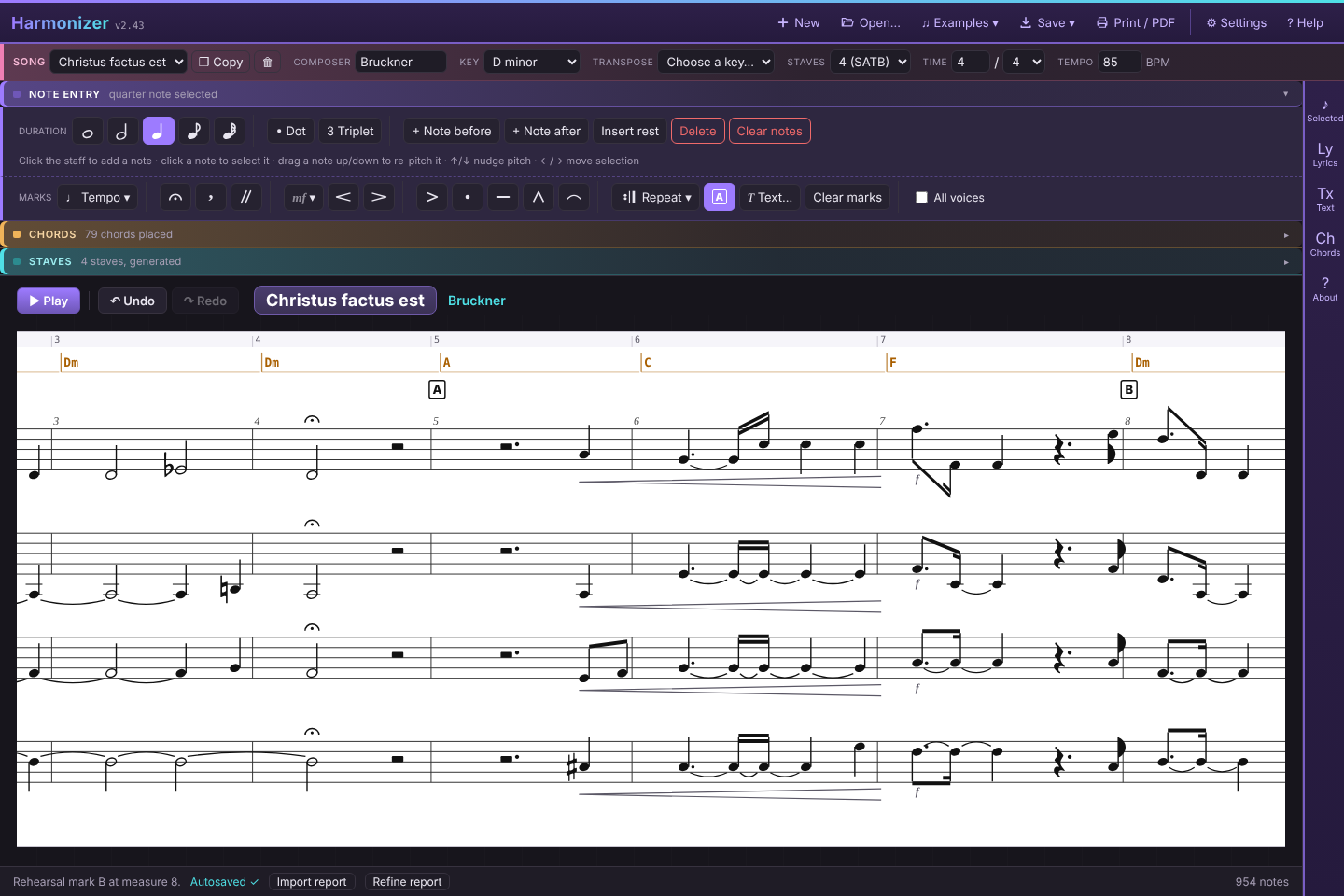
The Repeat ▾ menu in the Marks row works on whole measures — from the measure holding the first selected note to the one holding the last:
- Repeat these measures puts a start repeat |: at the first measure and an end repeat :| after the last. Start repeat and End repeat add (or remove) just one. An end repeat with no start goes back to the beginning.
- 1st ending, 2nd ending, 3rd ending and 1st & 2nd ending put a bracket over the selected measures. Put the end repeat at the end of the 1st ending, as usual.
- D.C., D.S., D.C./D.S. al Fine and al Coda go at the end of the measure; Segno and Coda at the start of theirs; Fine and To Coda at the end. The status line reminds you if a jump is missing its Segno, Fine or Coda.
- Remove repeats & jumps here clears them from the selected measures. They're also listed in Key, tempo, time & rehearsal marks in the Selected panel, each with a ✕ — and an end repeat has a box for how many times the passage is played (3 or more is written above the barline as “3×”).
What playback does. Play follows the repeats and jumps in performance order, with the playhead going back where the music goes back. The usual conventions apply: after a D.C. or D.S. the repeats aren't taken again and the last ending is played, and a D.C./D.S. is taken once. The play window has a Repeats switch to play straight through as written instead. Loop always plays its passage as written. Save .wav, rehearsal tracks and Save .mid are performances too (following the Repeats switch); Save .musicxml writes the score as written, with its repeat barlines, endings and D.C./D.S. marks, and MusicXML import reads them back.
15. Playback, loop and practice speed
Press Play or Space. Sound comes from recorded samples across the full keyboard, so extreme high and low notes sound correctly rather than being clipped to a vocal range.
- Where it starts. From the selected note if one is selected; otherwise from the selected chord; otherwise from the first measure that contains a note, skipping any leading rests.
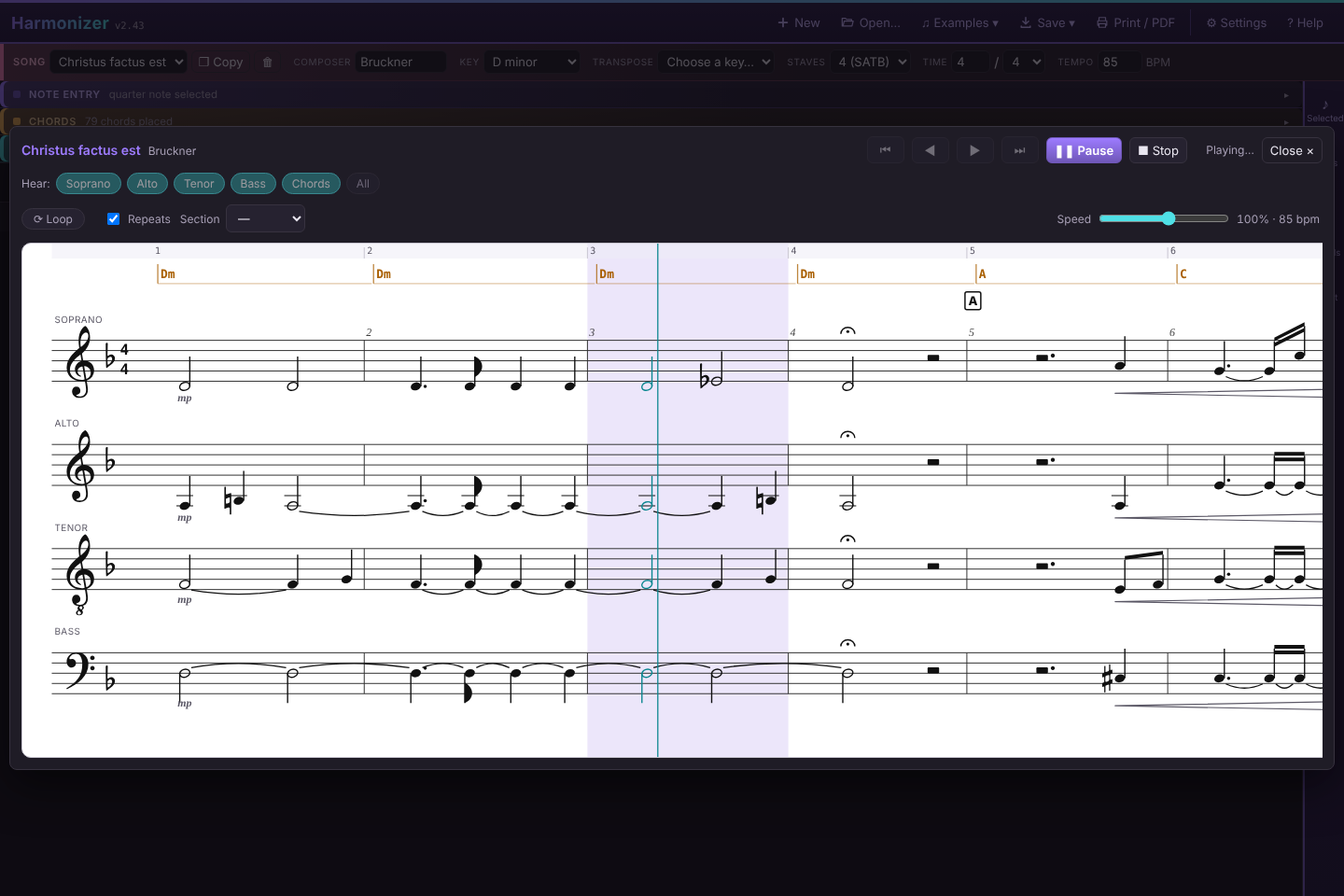
- The play window. Pressing Play opens the score in a centered window that uses as much of the screen as it can. The editing layout is untouched behind it and returns when you press Close or Esc.
- While playing. The current measure is shaded across every stave, a thin line follows the beat (through any tempo changes), playing notes light up, and the score scrolls to keep the playhead in view.
- Pause and resume. Space is a toggle. Press it while playing to pause: the playhead stays parked where the music stopped, the status bar names the measure, and the Play button becomes Resume. Press Space (or Resume) again to carry on from exactly that spot. To resume from somewhere else, click a note in the play window while paused — in the play window a click only chooses a starting point, it never edits — and playback continues from that note instead. With Loop on, resuming stays inside the loop.
- Stop forgets the paused spot, so the next Play starts the usual way (from the selected note, or the beginning). Editing the music, switching songs, or reaching the end also clears it; closing the play window doesn't.
- When stopped or paused. The window stays open. ◀ / ▶ (or ← / →) page through the score, and ⏮ / ⏭ (or Home / End) jump to the beginning or end — and move the play position there too: after ⏮, Play starts from the top (even if you had paused somewhere, or selected a note earlier); after ⏭, it plays the last measure. Paging with ◀ / ▶ only moves the view. Clicking a note afterwards still makes playback start from that note.
- Choosing what you hear. The play window's Hear row has one button per stave plus Chords: click to include or exclude, Shift-click a stave to hear only that one, or press All. These mirror each stave's Play checkbox and the Play chords switch.
- Sound. Next to Loop, Sound chooses what the staves play on (from 3.0):
- Per stave — each stave plays its own Instrument (see Staves). Songs that say Piano everywhere sound exactly as before.
- Piano — every stave on piano, whatever the Instrument fields say.
- Choir — every stave on Choir Aahs, to hear a choral arrangement sung rather than played.
Loop
Loop (or L) in the play window repeats a passage until you stop it. Select one note to loop its measure, or select notes across several measures — on any stave — to loop all of them; with nothing selected it loops the whole song. The loop always covers whole measures, and the measures it will play (“Looping mm. 5–8”) are shown beside the button. Turn Loop off and playback stops at the end of the current pass. A loop plays its passage as written, without repeats or jumps.
Sections (rehearsal letters)
When the song has rehearsal letters, the play window shows a Section menu beside Loop. Pick a letter and the play position moves there (if the music is playing, it carries on from there). With Loop on and no note selected, Play repeats just that section, up to the next letter (“Looping section B (mm. 17–24)”) — the way a rehearsal actually runs. Selecting notes takes priority over the section, as before; ⏮/⏭ clear it.
Practice speed
The Speed slider in the play window slows playback down to 40% or speeds it up to 150% without changing pitch, and shows the resulting tempo (“80% · 77 bpm”). [ and ] nudge it by 5%. A new speed takes effect the next time Play starts, or on the next pass of a loop. It is remembered in this browser, applies to every song, and never changes the song's written tempo.
Saving the audio
Save → as .wav renders the whole song, start to finish, through the same sounds Play uses (the Sound setting included), with the staves and chords currently switched on, and downloads it as a standard, lossless .wav file. (There is no MP3 export: browsers don't include an MP3 encoder. Any audio program converts a .wav.)
16. Rehearsal tracks
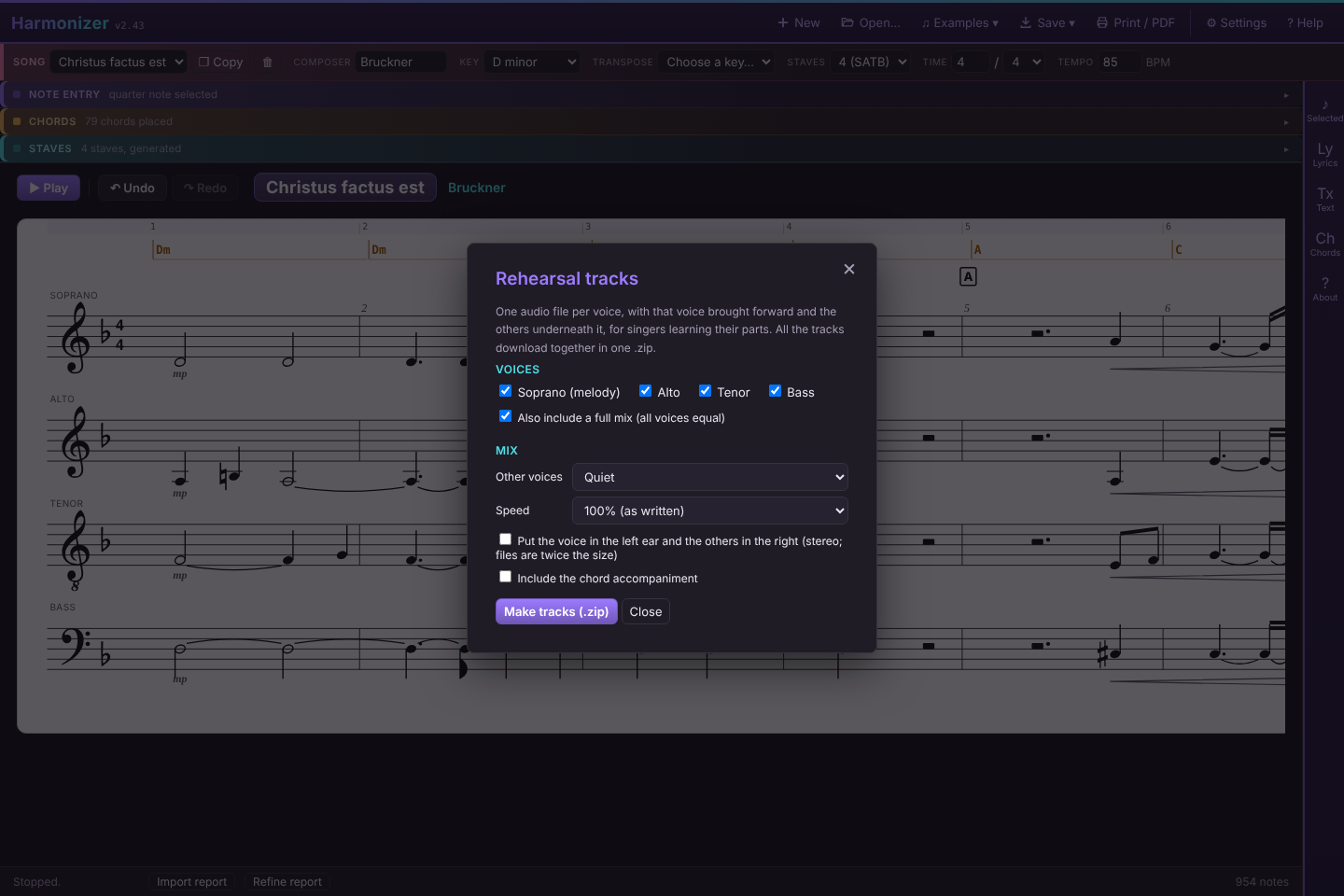
Rehearsal tracks…, the last item in the Save ▾ menu, makes part-learning tracks for your singers: one audio file per voice, with that voice at full volume and the others underneath it. The dialog offers:
- Voices — a checkbox for every stave with notes (all ticked to start), plus Also include a full mix with all voices equal.
- Other voices — Medium (half volume), Quiet, Very quiet, or Silent (the voice alone).
- Speed — 50% to 125%; a slow set for note-bashing and a full-speed set for later.
- Left ear / right ear — the voice in the left ear and everything else in the right, the classic learning-track layout. Stereo files are twice the size of the default mono ones.
- Include the chord accompaniment.
Press Make tracks (.zip). Each track is rendered in turn (progress is shown) and all of them download together in one .zip named after the song, with files like My-Song - Alto.wav (and … 80pct.wav for a slowed set). The tracks are performances: tempo changes, rit. and accel., fermatas, breaths and dynamics are followed, repeats and D.C./D.S. are played out (unless the play window's Repeats switch is off), and a stave's divisi notes are in that voice's track (use Split divisi first if Alto 1 and Alto 2 need a track each).
17. The score display and Settings
Notation details
- Clefs and accidentals are drawn as vector shapes from the Bravura music font, so they look the same on every computer and scale with the staff.
- Stems point up or down by the note's position on the staff; eighths and sixteenths are beamed in groups within a beat, or flagged when alone. In 6/8, 9/8 and 12/8 a beat is a dotted quarter, so beams group in threes; groups never cross a barline.
- Ties join notes of the same pitch. Dynamics and hairpins sit below the stave; fermatas, articulations, breath marks and text above or beside the note; tempo words, rit./accel. with a dashed line, and boxed rehearsal letters above the top stave (see Expressive marks). Grace notes carried in from an imported score are shown as small noteheads but are view-only.
- Key changes, tempo changes and time-signature changes are drawn where they happen (see Key, tempo and time changes).
- Measure numbers sit in italics just above the top stave at each barline (from measure 2), lifted over any high note beside them, and print with the score; in Print / PDF each new line also starts with its number over the clef. Settings can put them over every stave instead, or turn them off. The row of numbers above the chord lane (the measure ruler) is always there, for selecting measures.
- The part name sits above the top-left of each stave. With many staves, a small badge at the top or bottom of the score names any that are scrolled out of view; click it to scroll.
- A long piece scrolls horizontally; a short one stretches to fill the width.
Settings
The gear icon in the header opens Settings:
- Black on white — the score pane's colour scheme: black notation on a white page (default), or light-on-dark. Score only, remembered in this browser across every song.
- Barlines — show or hide the automatic barlines. Saved with the song.
- Measure numbers — Above the top stave (default), Above every stave (handy when each singer reads only their own line), or Off.
- Show locked notes (on by default) — the blue padlock and dashed line over locked notes (see Locking).
- Mark generated notes — a dotted cyan line with a small star over every run of notes Generate parts wrote: on staves that also have my notes (default), on every stave, or off (see Locking).
- Range warnings (on by default) — any note outside the comfortable range of its stave's voice part is tinted orange; hover it to see which range it's outside, for example “Above the Alto's comfortable range (G3–D5)”. The ranges are the same ones Generate parts writes within, judged at sounding pitch (so a tenor-clef note counts an octave below where it's written). Change a stave's Part and its notes are judged against the new voice.
- Mark partwriting problems (off by default) — draws a dashed line along the voices involved, with a small label (hover the label to see which voices):
- 5 / 8 (red) — parallel fifths or octaves: two staves moving the same way from a perfect fifth to another fifth, or from an octave (or unison) to another octave.
- c5 / c8 (red) — the same by contrary motion: a fifth to a twelfth, an octave to a double octave, with the voices moving apart or together.
- h5 / h8 (orange) — hidden (direct) fifths or octaves: the top and bottom staves moving the same way into one, with the top voice leaping. When it steps, that's fine.
- ov (orange) — a voice overlap: a voice moving past the note the stave next to it has just left (the tenor rising above where the alto was a moment ago), from the one note to the other.
- x (violet) — a cross-relation: a note and its chromatic alteration one after the other in different voices (F in the alto, then F♯ in the soprano). It isn't marked when a voice makes that chromatic step itself.
- +2 (violet) — an augmented second within a voice (F to G♯), awkward to sing in tune.
- Refine after Generate parts (on by default) — after writing its draft, Generate parts works over it again as lines (see Refining the draft as lines). Turn it off to hear the plain draft; the Refine parts button still works either way.
- Song library backup — see Backing up every song.
Black on white, Measure numbers, Show locked notes, Mark generated notes, Range warnings, the partwriting marks (and which kinds are ticked) and Refine after Generate parts are remembered in this browser across every song. The warning colours and marks never appear when you print.
18. Importing a MusicXML score
Press Open… and choose a MusicXML file — .musicxml, .xml, or a compressed .mxl from MuseScore, Finale, Sibelius or similar. It always opens as a new song, so nothing you have is overwritten.
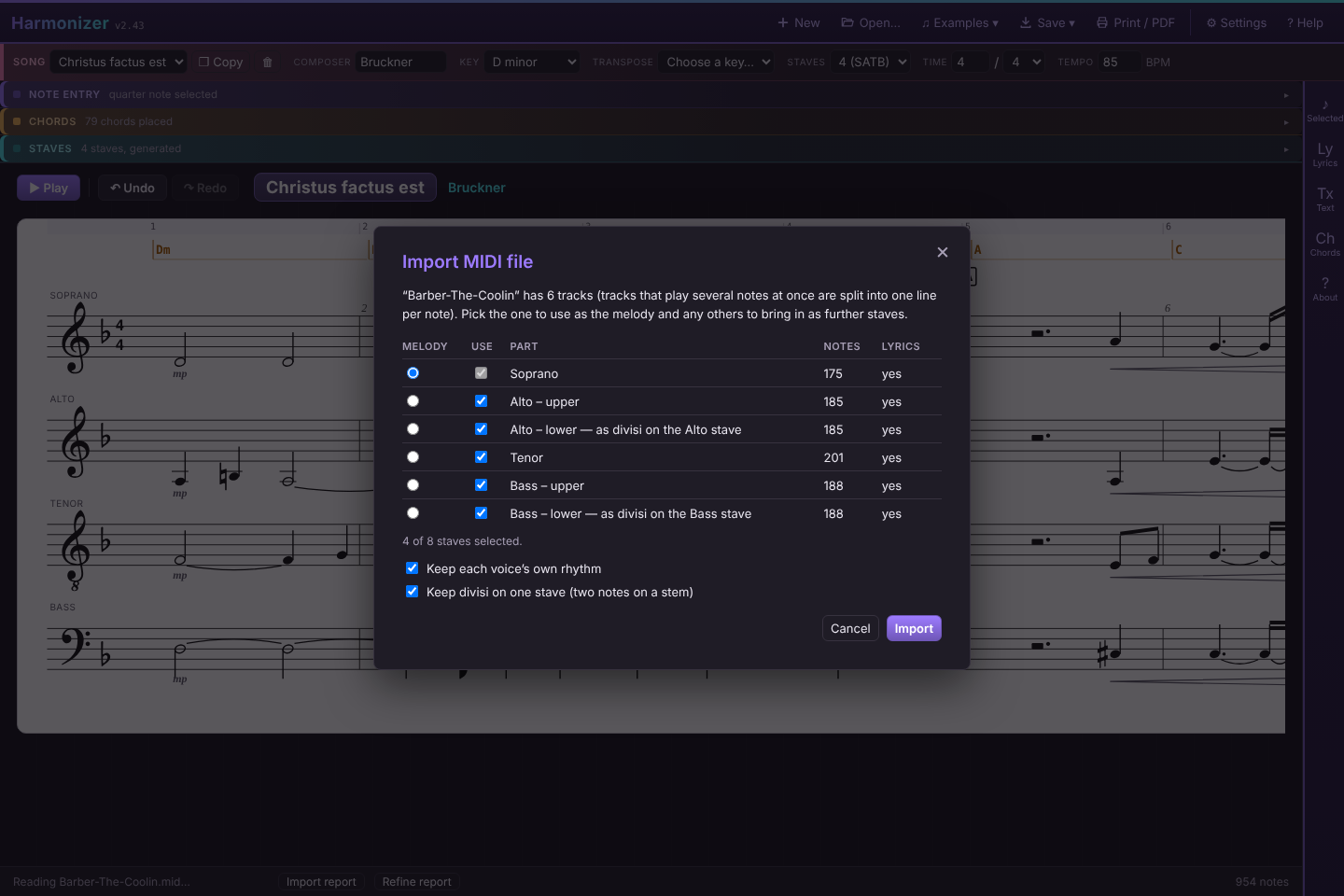
If the file has more than one line of music, a dialog lists them so you can choose which becomes the melody (its lyrics and chords become the song's) and which others come in as further staves (up to eight in all). Vocal parts are ticked to start with; if nothing in the file looks vocal, every single-line part is. Keep each voice's own rhythm (on by default) keeps each voice's rhythm; untick it to have the other staves follow the melody's rhythm. Press Import, or Esc to cancel. The status line then reports what came across.
The Import report
After every import an Import report button appears in the status bar at the bottom. It opens a table of what the file held against what's now in the song, for the parts you brought in: notes, lyric syllables, dynamics, hairpins, slurs, fermatas, articulations, breath marks, words, rehearsal marks, tempo, meter and key changes, repeats, endings and chord symbols. Below it, Not brought across lists anything Harmonizer doesn't model: ornaments (trills, mordents, turns), tremolos, arpeggio signs, glissandos, other articulations, notes shorter than a sixteenth, double dots, tuplets other than triplets, verses past the sixth, C clefs, clef changes within a part, and chord-symbol extensions or slash basses. For MIDI it matches the file note for note (each key at each sixteenth), says how many notes sit on chord lines you didn't tick, and counts notes that had to be moved onto the sixteenth grid.
If anything came up short, or something in the file couldn't be brought across, the report opens by itself and the button turns amber. Otherwise it stays closed until you click the button. Notes are counted once per attack: tied notes count as one note, and each divisi head counts. It's the quickest way to check a file before you start arranging from it.
Parts with more than one line
A part that holds several lines is split so none of them is lost:
- A second voice on the same staff (MusicXML voice 2, as in a SA stave or a fugue) is offered as its own stave: “Piano – voice 2”.
- Chords within a voice — a divisi, or a piano reduction — are split top-down into one line per note: “Soprano – upper” / “Soprano – lower”, or “note 1 (top)” to “note 4 (bottom)” for bigger chords. Where a chord has fewer notes than there are lines, the lower lines share its bottom note, so a divisi that comes back to unison sings the same note on both staves.
- Keep divisi on one stave (on by default): a part's lower line goes onto its upper line's stave as divisi — two notes on a stem where they differ, one note where they agree — instead of an upper and a lower stave running the whole piece. The dialog marks those rows “as divisi on the … stave”, and they don't count toward the eight staves. Untick it to get separate staves; you can still combine or split them later in Staves.
- With that option off, the lower line of an occasional divisi starts unticked; tick it to bring it in. A part that is split most of the time is ticked for you.
- Lower lines and second voices are given the next part down (Soprano II, Alto II…) so two staves don't end up with the same name.
What comes across
Notes, rests, lyrics (every verse, with hyphens and extenders), ties, chord symbols, the key, tempo and time signature, a pickup measure, and every key change, tempo change and time-signature change. Dynamics, hairpins, slurs, fermatas, articulations (accent, staccato, tenuto, marcato), breath marks and caesuras, and text directions (“hum”) come across on every stave that keeps its own rhythm (with Keep each voice's own rhythm unticked, only the melody keeps them), and you can edit them like any others. Rehearsal marks and tempo words come across too, and so do section headings written as text (“Verse 1”, “Chorus”, “Bridge”, “Chorus 4 Repeat”), which become named rehearsal marks, so they also show up in the play window's Section list. Tempo words include Allegro and the like, rit./rall./accel. (running to the end of their dashed line), a tempo and Tempo I. Grace notes are shown and exported but can't be edited. Each part's instrument name comes across as its stave's Instrument label. Tenor parts on the “8” treble clef are read as sounding an octave below written; a transposing instrument's part (clarinet in B♭, horn in F…) is brought to concert pitch, key signature and chord symbols included; and bass-range parts written in a treble clef are shown on a bass clef. Parts named for a voice (“Soprano”, “Piano, Alto”) get that part; unnamed ones (“Track 1”) get the usual choir layout for the number of staves, highest first.
What is simplified
- Rhythms from whole notes down to sixteenths (dotted if needed) and 3:2 triplets are kept. Longer notes are split into ties; anything faster than a sixteenth is folded into a neighbouring note.
- Repeats, 1st/2nd endings, segno, coda, Fine and D.C./D.S. directions are read. A rit. whose slowing is already spelled out by tempo marks in the file is shown but not slowed twice.
- A file whose title is MuseScore's placeholder “Untitled score” takes its title from the title text on the page, or else the file name.
- Anything else the file holds that Harmonizer doesn't model is listed in the Import report.
Examples
The Examples ▾ menu, next to Open… in the header, lists the example arrangements that come with Harmonizer — choral pieces by Barber, Bruckner, Byrd and Morley. Pick one and it opens as a new song, through the same chooser as any other file, so you pick the melody and which voices to bring in. When Harmonizer starts with no music at all (a first visit, or a library of only empty songs), a welcome window offers the same list, along with Start with an empty song, Open a file… and the quick-start guide. Opening anything into an untitled, empty song replaces it rather than leaving a blank song behind in the Song menu.
Adding your own examples. The examples live in the data folder beside the app folder (projects/harmonizer/data/ on this site). Put a .mid, .mxl, .musicxml or .json file there and add a line for it to data/index.json, which lists each file with the title the menu shows. (Without an index.json, Harmonizer falls back to the web server's own folder listing, where the server allows one.)
19. Importing a MIDI file
Open… also reads MIDI files (.mid, .midi, .kar) and opens them as a new song through the same dialog:
- Every track becomes a candidate stave (in a single-track file, every channel does). The drum channel is ignored.
- A track that plays more than one note at a time — all four voices on one track, or a piano part — is split top-down into one line per simultaneous note, like chords in MusicXML; a note held while another line moves is tied across. With Keep divisi on one stave ticked, a track that only divides now and then (Alto 1 and 2 on one track) comes in as one stave with divisi.
- The file's tempo, time and key signatures, and all their changes, come across, and so do lyric events. When a file sets two time signatures at the same moment (The Coolin opens with 4/4 and then 12/8), the last one wins. The track name names the stave; the MIDI program becomes its Instrument label (programs 53–55, the choir and voice sounds, mark a track as vocal). A track named for an instrument (“Tenor Recorder”) isn't mistaken for a voice.
- Dynamics from velocities. Where a track's note velocities really vary, Harmonizer averages them over about two bars and marks the level (pp to ff) wherever it changes and holds for at least six beats, so one accented note doesn't get a mark of its own. A file that plays every note at the same velocity gets no dynamics.
- Hairpins from volume swells. A steady rise or fall in a track's volume or expression controller (four or more steps, a beat or less apart) becomes a crescendo or diminuendo over the notes it covers.
- Fermatas from tempo drops. Many files write a fermata as a sudden deep drop in tempo that springs back within a beat. That's read as a fermata on every part at that point, not as two tempo changes.
- Ritardandos from tempo steps. A run of small tempo steps in one direction (100, 99, 98… down to 40) becomes one rit. or accel. span ending at the tempo it arrives at, not dozens of tempo changes. A tempo change that falls in the middle of a long note keeps its place instead of moving to the next note.
- Markers (section names, rehearsal letters) become rehearsal marks. The same key struck twice at once counts as one note, and a keyboard track's upper line is chosen together with its lower (divisi) line.
- MIDI holds timings rather than notation, so rhythms are rounded to the nearest sixteenth (triplets come out as sixteenths), and there is no pickup measure. Note spellings follow the key signature in force; a file without a key signature gets the key with the fewest accidentals for its notes.
20. Saving, songs, backup and export
Autosave
Every change is saved to this browser as you go; the status bar flashes “Autosaved”. Songs are stored per browser and per computer, so a different browser, a private window, or cleared site data will not have them — keep a backup (below).
If saving fails. A browser gives each site limited storage, typically about 5 MB. If Harmonizer can't save, an amber ⚠ Not saved in this browser warning appears in the status bar (saying “storage full” when that's the cause) and stays until a save succeeds. Your work is still on screen: export a backup straight away, then delete songs you no longer need.
Several songs
The Song dropdown switches between songs in progress. New starts another without touching the current one. The trash button deletes the current song (with confirmation).
Copying a song
Press Copy beside the Song menu to duplicate the current song as “… (copy)” and switch to it. Try a different key, chords, style or arrangement there; the original stays untouched.
Transposing a song
Transpose, beside Key, lists only keys of the same mode: other majors for a major song, other minors for a minor one. Each entry shows the shortest move, for example ↑5 or ↓2 semitones. Choosing one moves every note on every stave, every chord and every key change, and changes the key. Spellings follow the new key (a raised leading tone stays a sharp). To undo, press Undo or transpose back. Changing the plain Key menu, by contrast, only relabels the key.
Backing up every song
Settings → Song library backup shows how many songs are stored in this browser and roughly how much of its storage they use. Export library downloads every song as one file, harmonizer-library-YYYY-MM-DD.json. Import library… (or opening that file with Open…) adds its songs back — it never overwrites: songs you already have are skipped, and a song that has changed since the backup comes in as a separate copy. This is also how to move all your songs to another computer or browser.
Files
| Format | Use it for |
|---|---|
| .json (song) | Backing up one song, moving it to another computer, or reopening it in Harmonizer exactly as it was, generated harmony, style and changes included. Opening one adds it as a new song. |
| .json (library) | A backup of every song in this browser (Settings → Export library). |
| .musicxml | Finishing the arrangement in notation software. Contains the melody and every stave with notes, divisi (as chords on one stem), lyrics (every verse, with hyphens and extenders), ties, chord symbols, key, time and tempo with all their changes, tempo words, rit./accel., dynamics, hairpins, fermatas, articulations, breath marks, slurs, text, rehearsal marks, repeats, endings and D.C./D.S. marks, grace notes carried in from an import, instrument labels, and title/composer. The tenor clef is exported as a treble clef with an octave change. |
| .mid | Rehearsal apps, DAWs, and anything else that plays MIDI. One track per stave, named for its voice part, on its own channel with a General MIDI instrument from its Instrument label; a conductor track with the title, tempo, time and key signatures and all their changes; tied notes as single notes; divisi as a second note; lyrics (verse 1) as lyric events; dynamics, hairpins and accents as note velocities, staccato as shorter notes, and rit./accel. and fermatas as tempo changes. Repeats and D.C./D.S. are written out, as they're played. Chord symbols and the chord accompaniment are not included. |
| .wav | The audio of the whole song as you'd hear it on Play, repeats and all. |
| .zip of .wav | Rehearsal tracks, one per voice (see Rehearsal tracks). |
| Print / PDF | The score alone, through the browser's print dialog; choose “Save as PDF” there for a PDF. The score is laid out in lines (systems) across the page, broken at barlines — each line starts with its clef, the key signature in force there, the part names and a measure number — and runs onto as many pages as it needs, never splitting a line across two pages. The title, composer, key and time head the first page. Everything shown on screen prints (lyrics, chords, ties, dynamics, key and tempo changes); a tie or slur that crosses the end of a line is cut there. Portrait fits about three four-part lines per page; landscape gives longer lines. Range warnings, the partwriting, lock and generated-note marks never print. |
21. Keyboard and mouse reference
| Action | Input |
|---|---|
| Play / pause / resume | Space |
| Undo / redo | Ctrl+Z / Ctrl+Y (or Ctrl+Shift+Z) |
| Add a note | Click the melody staff, or an Own rhythm stave |
| Select a note | Click or tap it |
| Extend selection over a range | Shift+click |
| Add/remove one note from selection | Ctrl+click (Cmd on Mac) |
| Move selection along the stave | ← → |
| Nudge pitch one step | ↑ ↓ |
| Nudge pitch by seven steps | Shift+↑ / ↓ |
| Move up/down one octave | Ctrl+↑ / ↓ |
| Swap pitches of two selected notes | Ctrl+X |
| Delete the selected note | Delete or Backspace |
| Re-pitch by dragging | Drag a note up or down (mouse, pen or finger) |
| Add or select a chord | Click the chord lane |
| Play window: page / jump | ← → / Home End |
| Fermata on the selected note(s) | F |
| Start typing lyrics on the selected note | Enter |
| Lyric box: next / previous note | Space or Tab / Shift+ either |
| Lyric box: next syllable of the word / hold the syllable | - / _ |
| Play window: loop on/off | L |
| Play window: Sound (Per stave → Piano → Choir) | V |
| Play window: speed −5% / +5% | [ / ] |
| Close the play window or a dialog | Esc |
Keyboard shortcuts are ignored while you are typing in a text box, and editing keys are ignored while a dialog is open, so typing lyrics or melody text never moves notes.
22. What Harmonizer doesn't do
Harmonizer is for sketching vocal arrangements, not engraving a finished score. By design:
- Durations are whole to sixteenth notes, dotted, plus simple triplets. No thirty-seconds, and no other tuplets.
- No bar-line arithmetic: it places barlines from the time signature but does not stop you writing a short or long measure.
- Key, tempo and time changes start at the beginning of a measure (tempo words, rit./accel. and a tempo can go on any note).
- Up to six verses of lyrics. Grace notes appear only when they come in from an imported score, and can't be edited. Repeats and jumps are whole measures; no multi-measure rests, no nested repeats.
- Five sounds: piano, Choir Aahs, organ, strings and flute. Other instrument names borrow the nearest of these. The choir sings a vowel, not the words.
- Printing is a straightforward layout: lines break at barlines with a ragged right edge, spacing isn't re-justified, and a tie or slur crossing a line break is cut.
- Harmony generation is a rough draft.
For anything beyond that, export MusicXML and carry on in a notation program.
23. Troubleshooting
| Symptom | Cause and remedy |
|---|---|
| No sound | Wait a moment after the first Play while the sound loads (the piano, or a stave's other sound). Check the stave's Play box, Play chords, the Hear buttons, your device volume, and that the browser tab isn't muted. Some browsers need a click on the page before audio can start. |
| “Could not load the … sound — playing it on piano” | That instrument's file (harmonizer-bank-choir-aah.json, -organ, -strings or -flute) isn't next to the app, or didn't download. Its staves play on the piano meanwhile. Check the files are uploaded alongside harmonizer-piano-samples.json. |
| Samples fail to load when running locally | Browsers block a page opened by double-clicking (file://) from reading its neighbouring sample file. Serve the folder instead, for example python3 -m http.server, and open it via http://localhost. |
| “Generate parts” is missing | It needs at least two staves and at least one chord. Set Staves above 1, add chords, and open the Staves section. |
| Harmony staves went blank | Changing the melody, chords, or a stave's Part or Clef clears harmony that would now be stale. Press Generate parts again. |
| Notes show unexpected naturals after a key change | A key change keeps existing pitches. If the passage should move into the new key, re-pitch those notes (or type them again in Melody text without accidentals). |
| Amber “Not saved in this browser” warning | The browser's storage for the site is full or blocked. Export a backup from Settings, then delete songs you don't need. The warning clears on the next successful save. |
| My songs have gone | Autosave lives in the browser's site storage. A different browser or computer, a private window, or cleared site data starts empty. Restore from a library backup (Settings → Import library) or a .json song with Open…. |
| A MIDI import has odd rhythms | MIDI stores timings, not notation; Harmonizer rounds them to sixteenths. Triplets and swung or freely played rhythms come out approximate. Export MusicXML from the program that made the MIDI file if you can. |
| An imported score looks simplified | See Importing a MusicXML score for exactly what is kept and simplified, and tick any extra voices or divisi lines you need in the import dialog. |
| The browser asks to allow several downloads | That shouldn't happen for rehearsal tracks, which come as one .zip. If your browser blocks the .zip, allow downloads for the site. |
| Playback jumps back or skips measures | That's the repeats, endings or a D.C./D.S. being followed. Untick Repeats in the play window to play straight through as written; Loop always does. |
| Combine with … refuses | Somewhere the two staves have triplets that don't line up with the other line's notes, so they can't share a stem. The status line names the measures; change those triplets on one stave and try again. |
| The launcher shows an old version | The launcher reads current.txt in the app folder to decide which version to open. Reload once; if that doesn't help, check that the file names the newest release. |
24. What's new
3.0
- Instruments: besides the piano, a stave can play Choir Aahs, Organ, Strings or Flute. The stave's Instrument field picks the sound, and an imported file's choir parts sound like a choir. Voice parts that a MIDI file played on some other sound (flute, brass) come in as Piano.
- Sound in the play window: Per stave, Piano or Choir, to hear a whole arrangement sung or played at the press of a key (V). Save .wav and rehearsal tracks use it too.
- Each sound is its own file, loaded only when something plays it, so nobody downloads sounds they don't use. The piano sounds exactly as before.
2.43
- Cleaner added notes: notes the voices add of their own now obey every check Settings can mark — no parallel fifths from them in any style (with More added notes in Close, parallels in the examples fell from 51 to 20), and no contrary or hidden fifths and octaves, overlaps, cross-relations or augmented seconds. They're spelled from their line (E, F♯, G rising).
- Diatonic sequences (C Dm Em, a step up in the key each time) are recognised as repeated music and get matching parts, moved by scale steps.
- Melody sections: the joins between sections are written again in several orders and the best kept; with the tune in the bass on a passing note, the voices above keep the chord's root.
- The import dialog says Import MIDI file or Import MusicXML, whichever it is.
- The Partwriting Guide is updated for all of this.
2.42
- The header bands are easier to tell apart: the navbar sits on a deep-purple band with lilac commands and a violet rule beneath it; the song line is styled like the Note entry, Chords and Staves strips, with its own rose edge; and the icon rail on the right shares the navbar's purple, with a violet rule along its edge.
- The Song, Note entry, Chords and Staves strips start a shade brighter.
2.41
- Tighter song line: a shorter Composer field, the Transpose to menu relabelled Transpose, and a narrower Tempo box.
2.40
- The song title is no longer repeated in the navbar. The title above the score is now the one you edit (click it), on a lighter plate so it stands out, with the composer beside it in cyan.
2.39
- Tidier header: one navbar across the top — Harmonizer, then New, Open, Examples, Save, Print, Settings and Help — with the rest of the song's settings (song, composer, key, transpose, staves, time, tempo) on a single line beneath it.
- Play, Undo and Redo moved to a bar just above the score, beside the title. The header's Stop button is gone: Play opens the play window, which has its own Stop.
2.38
- More partwriting checks: Settings › Mark partwriting problems (was Mark parallel fifths & octaves) now also marks fifths and octaves by contrary motion, hidden fifths and octaves in the outer voices, voice overlaps, cross-relations and augmented seconds, each with its own label, and you tick which to look for. See Settings.
- Generate parts avoids them too, by style. On the eight examples, compared with 2.37: Traditional writes no fifths/octaves by contrary motion (35 before), no augmented seconds in the generated voices (11), and less than half the overlaps (69 → 28); Open writes no parallel fifths any more (5) and almost none by contrary motion (37 → 2); Close has fewer parallel fifths (31 → 25), fifths/octaves by contrary motion (44 → 16) and overlaps (62 → 46). Cross-relations are down by more than a third in every style.
- Generated notes are spelled from their chord: the leading tone in D minor is C♯, not D♭; in F major a D major chord's third is F♯, not G♭.
- Generated notes are marked on staves that also have your own: a dotted cyan line with a star over each run. See Locking.
- The Partwriting Guide covers the new checks and their weights.
2.37
- The tune in the bass: give a passage's tune to the lowest stave and it is treated as the bass line, with every other stave written above it. Before, the stave above it was planned as a second bass line and crowded the tune.
- Smoother joins between melody sections: after writing every passage, Generate parts (and Rewrite) goes back over each join and writes the measure on each side again with both sides in place.
- Chords-only passages: the top line is chosen together with the voices under it, from a few candidates, rather than fixed first.
- The Partwriting Guide covers all three.
2.36
- Measure numbers on the score at each barline, over the top stave (or every stave, or none — see Settings). They print too.
- Locked notes are marked: a blue padlock and dashed line over every run of locked notes; click it to select them. The Selected measures panel counts the locked notes on each stave. See Locking.
2.35
- Melody sections: select measures and choose Melody in a stave — the tenors take the tune for a verse, and the sopranos above them get a descant or a harmony — or None (chords only) for introductions, pads and hummed backgrounds, sung one note per chord, held, or on the beat. Bring the tune with it copies the tune across, octave and words adjusted. See Melody sections.
- The measure ruler: a row of measure numbers above the chord lane. Click, Shift-click or drag along it to select whole measures on every stave.
- Rewrite: write chosen staves again in the selected measures only, keeping everything else — for example keep the soprano and bass and rewrite the inner parts. Lock / Unlock act on the same measures and staves. See Rewriting some measures.
- “Generated” is now marked on each note rather than on the whole stave, so a stave can hold the tune in one passage and generated harmony in another. Generated notes in the melody stave (where the tune is elsewhere) lock when you edit them, like any generated note.
- The Partwriting Guide has a new section on melody sections, chords-only passages and rewriting.
2.34
- Repeated music keeps its parts: a passage that comes back — exactly, with small differences, or as a sequence a step (or any interval) higher — gets the parts it had the first time, added notes included, instead of being voiced afresh. A Repeated music menu beside the style menu chooses keep alike (the default), vary lightly, or write fresh. See Repeated music.
- The Refine report lists each repeat found, by measures; untick one to let it go its own way, or link two passages yourself, then Apply.
- Refine parts follows repeats too: edit a note the first time through, Refine parts, and the repeat takes the change.
- The Partwriting Guide has a new section on repeated music.
2.33
- Added notes: generated voices now have rhythm of their own — passing and neighbour notes, suspensions (including chains) and filled leaps where the melody holds, chosen by an Added notes menu beside the style menu (none / some / more, saved with the song). See Added notes.
- Chords under a held note are heard: where the chord changes during a long melody note, the voices now follow it (before, only the chord at the note's start counted).
- Refine parts reads parts with added notes, chooses the added notes again, keeps a locked note's whole beat as it is, and keeps the words on a part.
- The Refine report counts each voice's added notes.
- Fixed: reloading the page (or Open, or Copy) dropped every lock and the tag marking a stave as generated, so Generate parts afterwards refused to rewrite its own staves.
- The Partwriting Guide is updated for 2.32 and 2.33.
2.32
- Generate parts writes lines, not just chords. Two changes. First, the search now keeps each voice's melodic options open: before, each chord's candidate voicings were cut to the 16 that worked best as chords before any voice leading was considered, so a voicing that connected well could be lost early. Second, a new refine pass works over the finished draft with rules that judge a whole phrase of each voice: long held notes, cramped lines, repeated high points, back-and-forth steps, shadowing the melody, and one voice doing all the moving. It re-plans voices across a phrase, moves single notes, held notes and octaves, and exchanges notes between voices. See Refining the draft as lines.
- Refine parts button beside Generate parts: runs that pass on the parts as they are now, keeping your locked notes, lyrics and marks.
- Refine report in the status bar: each voice's line measures before and after, and every passage that changed, by measure, with reasons.
- Settings: Refine after Generate parts (on by default).
- On the example songs, compared with 2.31: the longest held notes in the generated voices are shorter (4.4 → 3.7 chord changes on average), there's less back-and-forth (24% → 21% of moves), and there are fewer parallel fifths/octaves in Close and Open styles (52 → 37 across the examples). Traditional still writes none.
2.31
- Better Generate parts voicing, from a review of the partwriting rules. Chords no longer drop their third; in particular a V7 keeps its leading tone. The bass keeps out of the way of the voices above it, so a final chord can't collapse into a unison. The voice just above the bass is now checked for wide gaps and muddy low thirds. First inversion is preferred to second, which is kept for the cadential 6/4. An inner-voice leading tone may fall to the fifth of the tonic chord. With the tune in an inner voice (a tenor lead, say), the parts above it stay above it and the bass stays below it.
2.28
- Import report: after an import, a button in the status bar shows what the file held against what came across, and lists anything Harmonizer doesn't model. It opens by itself when something came up short. See The Import report.
- MusicXML: section headings (“Verse 1”, “Chorus”) become named rehearsal marks; transposing instruments come in at concert pitch; a note held under a moving line keeps its tie through a save and reopen; “Untitled score” falls back to the file name.
- MIDI: two time signatures at the same moment (The Coolin's opening) now give the right meter. Velocities become dynamics, volume swells become hairpins, brief tempo drops become fermatas, runs of small tempo steps become rit./accel., markers become rehearsal marks, and hyphenated syllables (“un -”) keep their hyphen. Doubled strikes count as one note. Keyboard tracks bring in their upper line with the divisi, and recorder-named SATB tracks (the Byrd) all come in, as Soprano, Alto, Tenor, Bass.
- Divisi: where one voice holds a note while the other moves, the held note is no longer struck again; Split divisi puts the higher note on the upper stave.
2.27
- Hairpins stop before the dynamic they lead into, and open a little wider when they're long. The opening tempo word no longer sits on top of the top stave's name.
2.26
- Divisi on one stave: a note can carry a second note on the same stem — add, edit, swap or remove it in Selected. Combine with the stave below and Split divisi in Staves. Importing now keeps a part's second line on its own stave as divisi (Keep divisi on one stave, on by default) — The Coolin comes in on four staves instead of six. See Divisi on one stave.
2.25
- Mark parallel fifths & octaves no longer flags two staves that sing exactly the same notes — that's a doubled part. Octaves apart are still flagged.
2.24
- Repeats and endings: start/end repeats (played twice, or more), 1st/2nd/3rd endings, and D.C., D.S., Fine, Segno, To Coda and Coda — from the new Repeat ▾ menu in the Marks row. Play, Save .wav, rehearsal tracks and Save .mid follow them; a Repeats switch in the play window plays straight through instead. MusicXML both ways. See Repeats, endings, D.C. and D.S.
- Lyrics: up to six verses on every stave; hyphens drawn between syllables and extender lines under held syllables; type lyrics straight through the song (Enter on a note, then Space, -, _); fill, load or clear a whole verse; Copy lyrics to the other staves; every verse in and out of MusicXML. See Lyrics.
- Filling lyrics from a line of text now keeps each word's hyphens, so exported lyrics hyphenate properly.
2.23
- Expressive marks, from a new Marks row under Note entry: tempo words (Allegro…), rit. / rall. / accel., a tempo and Tempo I, fermatas, breath marks and caesuras, dynamics and hairpins, accent / staccato / tenuto / marcato, slurs, text above the stave, and boxed rehearsal letters. All voices puts a mark on every stave at once. See Expressive marks.
- They play: the tempo slows through a rit., fermatas hold, breaths leave a gap, dynamics and hairpins change the volume, staccato is short — in Play, Loop, Save .wav and rehearsal tracks.
- Section menu in the play window: jump to a rehearsal letter, and loop just that section.
- Dynamics, slurs and the other marks that come in from MusicXML are now editable; MusicXML import also brings fermatas, articulations, breath marks, hairpins, text, rehearsal marks and tempo words, and Save .musicxml / .mid write them back out.
2.22
- Jump to beginning / end fixed: in the play window, ⏮ and ⏭ (Home / End) now move the play position, not just the view, so the next Play really starts from the top (or the last measure) instead of jumping back to a paused spot or an earlier selected note.
2.21
- Clearer header: a Current song panel (which song, title, composer, key, transpose, staves, time, tempo) and a Commands panel with captioned groups — Playback, Edit, App, Songs & files — and chunkier buttons that are easier to spot.
- Rehearsal tracks… moved into the Save ▾ menu, with the other ways to save.
- Staves section: one line per stave, controls in aligned columns, the melody stave highlighted.
2.19
- More contrast: the Note entry, Chords and Staves strips are tinted in their own colours (violet, gold, teal), and the scrollbars are brighter.
2.18
- Generate parts reads the music before writing: phrase ends and cadences throughout the piece (not just the last note), secondary dominants, and the local key, heard from the notes and chords.
- Each voice is judged three notes at a time: leaps are followed by a step back, and hymn and open styles avoid lockstep blocks.
- Suspensions: prepared, tied over and resolved down by step, mostly the cadential 4–3.
2.17
- Print / PDF now lays the score out in lines across as many pages as it needs, each line with its clef, key signature, part names and measure number, instead of one tiny strip.
2.16
- The song's title and composer appear above the score and in the play window. Examples take theirs from the Examples menu.
- The Note entry, Chords and Staves strips say “Click to show…” / “Click to hide…” on hover.
2.15
- One Save menu (as .json, .musicxml, .mid, .wav) in place of four buttons.
- Examples menu with choral pieces to open, and a welcome window offering them when there's no music yet.
- Tidier MIDI imports: no redundant tempo changes from ritardandos, and nonsense time signatures ignored.
2.14
- Pause and resume: Space pauses playback and resumes from the same spot — or from a note you click in the play window while paused. Stop starts over.
2.13
- Range warnings: notes outside a voice's comfortable range are tinted orange, with the range on hover.
- Parallel fifths and octaves can be marked on the score (Settings), between any two staves.
2.12
- Style presets for Generate parts: Close harmony, Traditional (hymn) and Open (wide), chosen from a menu beside the button and saved with the song.
- Key changes and tempo changes, set per measure from the Selected panel (which also sets time-signature changes), drawn on the score, followed by playback, exports and harmony, kept on import and moved by Transpose.
- Nothing dropped on MusicXML import: second voices and chord notes (divisi, piano reductions) come in as their own staves, key and tempo changes are kept, and dynamics reach every part, not just one voice.
- MIDI import and export: Open… reads
.midfiles; Save → as .mid writes one track per stave with tempo, key, time, lyrics and dynamics. - Unnamed parts in an import (“Track 1”…) get a proper choir layout, and a part's own name now wins over its instrument name when choosing its voice.
2.11
- Rehearsal tracks: one .wav per voice with that voice brought forward, optional left/right ear split and practice speed, in one .zip.
- Loop and a practice-speed slider in the play window.
- Save safety: a visible warning when the browser can't save, and Export / Import library in Settings. Opening a .json song now adds it as a new song instead of replacing the open one.
- Touch and pen: dragging notes to re-pitch them works on tablets.
2.10
- An Instrument label per stave, kept from imports and written to exports.
- Dynamics, slurs and grace notes from imported scores shown on the staff.
- Print / PDF and Save → as .wav.
- A Settings dialog for Black on white and Barlines.
2.9
- Undo and redo, with typing sessions and drags each counting as one step.
2.8
- More room for the staves: the tool bars fold into the Note entry, Chords and Staves sections, and the side column became an icon rail whose panels slide out on demand.
2.5
- Close-harmony voicing for Generate parts, with the bass planned first and a search across the whole passage.
- Generated voices with independent rhythm, locking of hand-edited notes, and chord suggestions.
Earlier
- 2.4 — the Quickstart guide.
- 2.3 — Transpose to and Copy.
- 2.2 — Chords from voices.
- 2.1 — jump to beginning/end and Hear buttons in the play window; hidden-stave hints.
- 2.0 — up to eight staves, with Descant, second parts and Baritone.
- 1.9 — the play window.
- 1.8 — sixteenth notes and compound-meter beaming.
- 1.7 — independent rhythm per stave, and imports that keep each voice's rhythm.
- 1.6 — black-on-white score, engraved clefs and accidentals, and this guide.
Clefs and accidentals use the Bravura font's glyph outlines (SMuFL, © Steinberg Media Technologies, SIL Open Font License 1.1). Piano samples: Salamander Grand Piano by Alexander Holm, CC BY 3.0. Choir, organ, strings and flute samples: GeneralUser GS by S. Christian Collins (schristiancollins.com).